Citation Manager Scavenger Hunt
The goal of this exercise is to figure out how to set up your citation manager (Zotero) and integrate it into RStudio and your preferred browser.
Zotero Setup
Detailed instructions from the UNL Library
Navigate to https://www.zotero.org and download Zotero for your operating system.
Launch Zotero.
Create a Zotero account and add your unl email (@unl.edu, @nebraska.edu, @huskers.unl.edu) to your Zotero account.
This step is optional, but UNL pays for everyone to have storage for papers on Zotero’s servers. It can be convenient to be able to access your notes/papers from other machines, your tablet, etc.- Log in to your Zotero account in the Zotero application.
Install the Zotero Connector for your preferred Browser.
In the past, students who preferred Safari have had some trouble setting it up. I recommend Chrome/Firefox personally, as they seem to work seamlessly.Add the “Better Bibtex for Zotero” plugin using these instructions.
Customization. The following setting tweaks will make it much easier to acquire scientific papers and to track your references/citations/etc.
- In Zotero, go to Edit > Settings > General. Under File Handling, select the “Automatically attach…” and “Automatically retrieve…” options.
- Scroll down in settings to Locate. For the custom library resolver, use
https://unl.primo.exlibrisgroup.com/openurl/01UON_LINC/01UON_LINC:UNL?. This will allow Zotero to use UNL’s library to search for papers, books, etc. - Configuring Better Bibtex:
- Click on the Better Bibtex settings and scroll to the very bottom. Download this file and import the settings into Zotero.
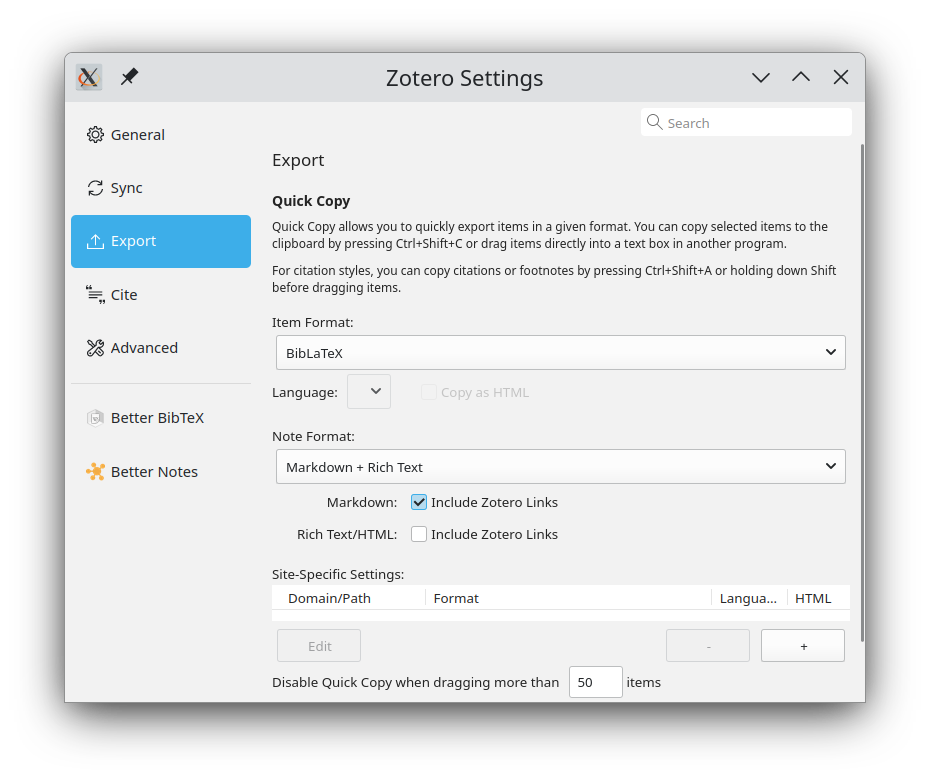
- Under Settings -> Export -> Quick Copy, set the Item format to BibLatex. This will enable Ctrl-Shift-C copying the citation information.
Citation Formats
Zotero will generate bibliography entries in any format you want. You may have used APA or MLA or Chicago or IEEE formats in previous classes.
You can set the citation style in Edit > Settings > Cite > Style Manager. New styles can be added using the link below the set of installed styles.
Locate the American Statistical Association style format and install it. Select it as your default style manager.
Select the Citation Option “Include URLs of paper articles in references”.
Take note of the citation styles that are already installed. Are any familiar to you from other courses?
Adding Citations from the Web
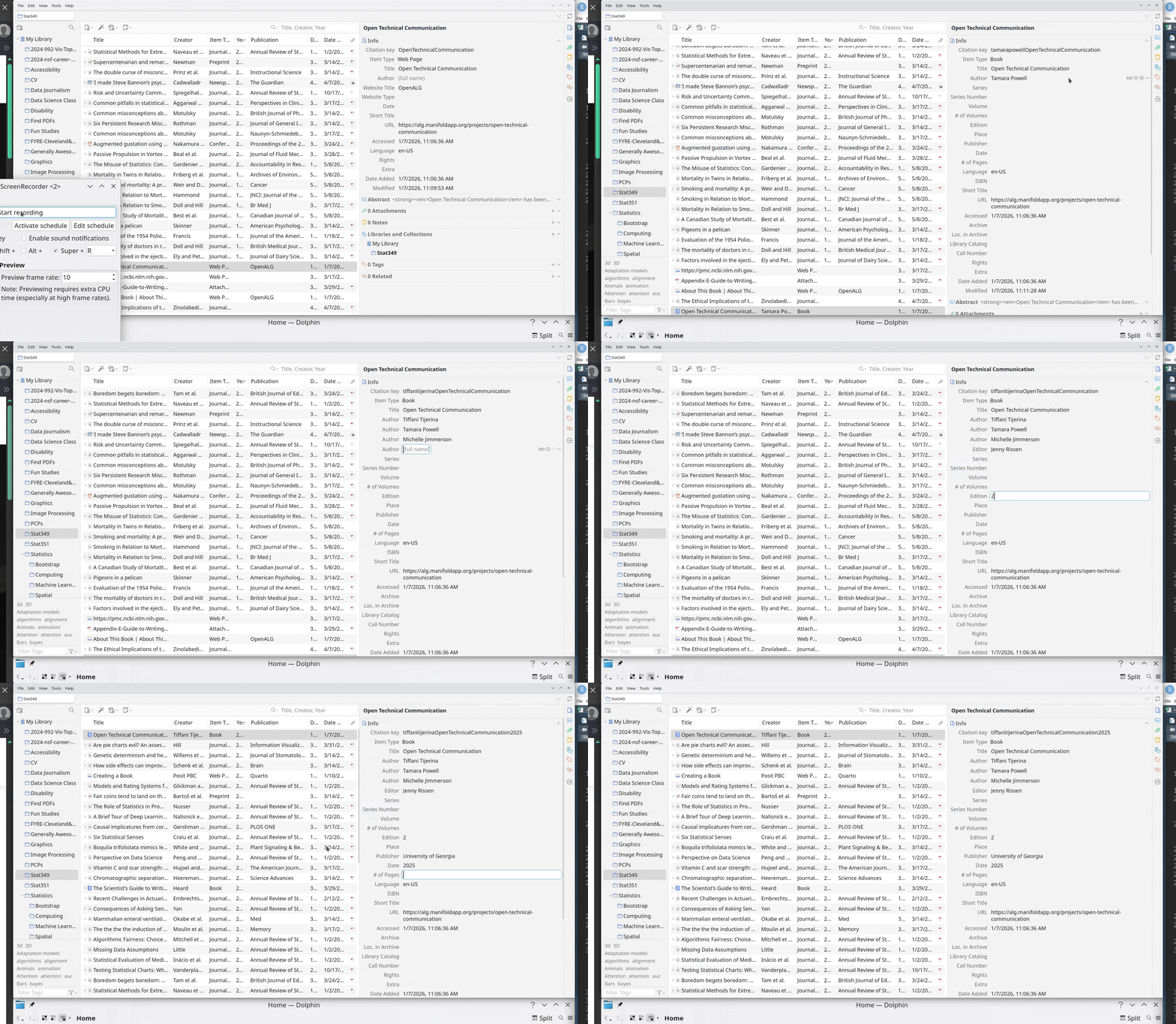
- Start by navigating to the OTC textbook and click the Zotero connector button to add the textbook to your library.
What happens? What type of entry does Zotero create for the OTC site?
Navigate to the “About this book” section of the textbook. Create a new entry for the textbook chapter. Is the entry type different?
Zotero Connector does extremely well with some sites (usually journals, encyclopedias, etc.), but when sites appear to be generic websites, Zotero connector has trouble, and you may need to manually change the item type (e.g. to book) and add authors and other metadata.
- Navigate to the IgNobel award winning paper “Ethanol ingestion affects flight performance and echolocation in Egyptian fruit bats”.
- You should have the option to sign in with your institution to access the full paper – complete that process.
- Click the zotero connector button in your browser and ensure that the paper is added to your zotero library. Examine the metadata - is it complete and correct?
- Open a text file. In Zotero, click on the entry for “Ethanol ingestion…” and then right click -> Create citation. Select American Statistical Association as the format and bibliography (not citation). Paste the result into the text file.
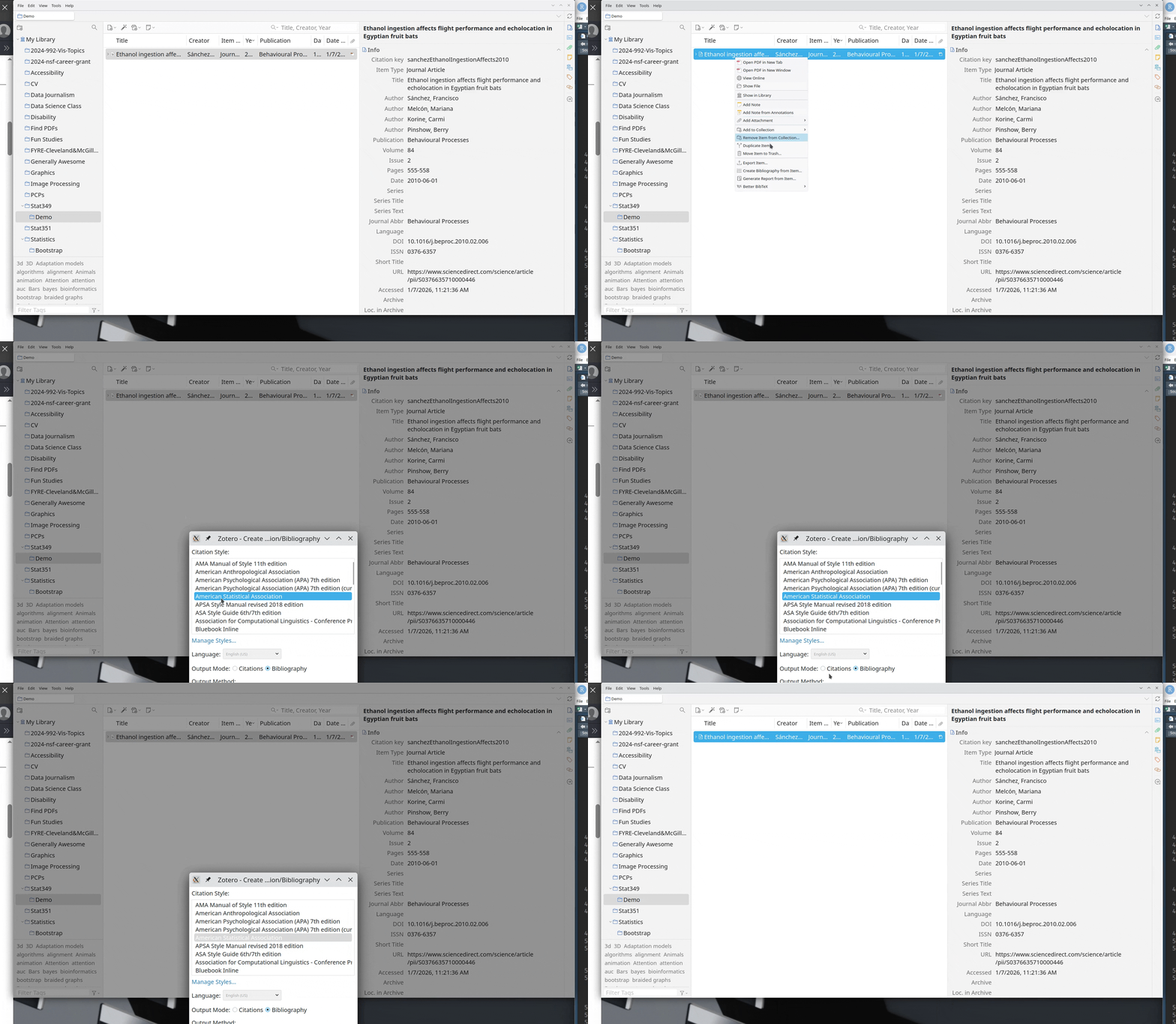
Does it match this?
Sánchez, F., Melcón, M., Korine, C., and Pinshow, B. (2010), “Ethanol ingestion affects flight performance and echolocation in Egyptian fruit bats,” Behavioural Processes, 84, 555–558. https://doi.org/10.1016/j.beproc.2010.02.006.
You can change the format and copy-paste to get well-formatted bibliographies for other courses. If you click citation instead of bibliography, you can get the parenthetical citation.
This is too manual for this class, though, so instead, we’ll work with a .bib file that encodes the information, and quarto to write our documents.
Zotero and Quarto
Bibliography files
A long, long time ago, well before quarto or rmarkdown, there was LaTeX – a program that was primarily used for typesetting math. The format it used for handling bibliographies was BibLaTeX, or BibTeX (they’re similar but technically not the same). You can read a bit about BibLaTeX here – in particular for this class, the section on “The bibliography file” is useful and will show you what a bib file looks like.
Bib files are perhaps even more painful to maintain by hand than an actual MLA/APA style bibliography. Luckily, Zotero handles that for us too.
This section relies heavily on having Quick Copy in Zotero (Settings -> Export -> Quick Copy, Item Format set to BibLaTeX) set to BibLaTeX. If you haven’t set that, please do so now.
For each project and some regular assignments in this class, we’re going to have a .bib file with all of the references you collect.
Semi-Automated Bibliography File Assembly
I find it easiest just to select the entries in Zotero and copy them into the bib file manually. This isn’t fully manual – we don’t have to write the bib entries ourselves (like I did in graduate school). Let’s try that first before I show you other ways to connect RStudio to Zotero.
Create a text file called
references.bib(make sure it has the extension.biband not.bib.txt, particularly if your operating system hides file extensions from you).In a browser, navigate to “Cows painted with zebra-like striping can avoid biting fly attack”, another 2025 IgNobel award winning paper. Use Zotero connector to add the paper to Zotero, and make sure that all of the necessary fields1 are filled in correctly.
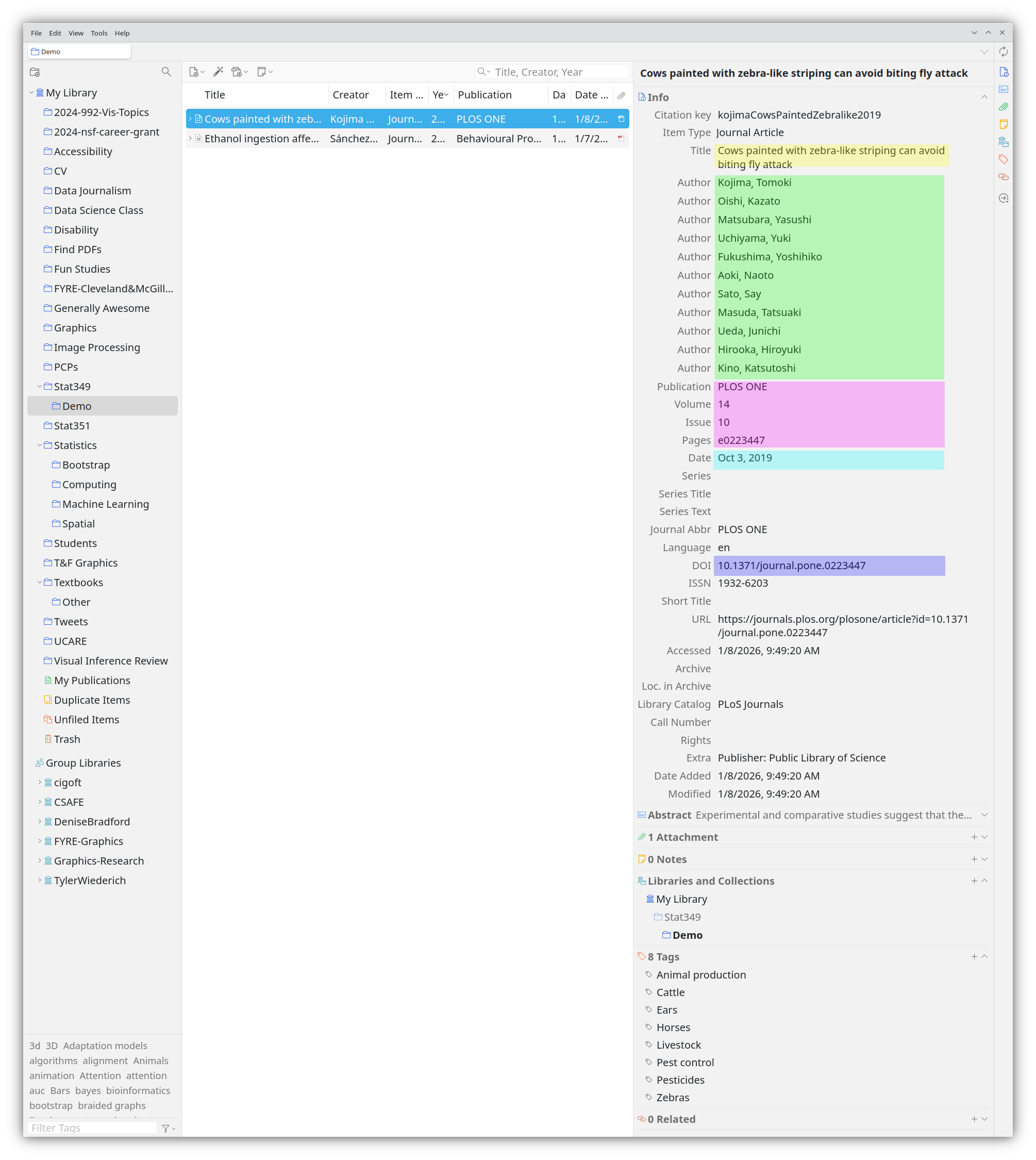
- Select both IgNobel papers in Zotero and use Ctrl/Cmd+Shift+C (Quick copy) to get the BibLaTeX entries. Paste them into your references.bib file. Your file should look something like the lines below. I have removed the abstracts and file locations from my file for brevity’s sake.
#| echo: false

cat references.bib- Create a quarto file in RStudio or your IDE of choice. In the YAML metadata at the top, add
bibliography: references.bibas an option. A minimal file with a title would look like this.
---
title: "Testing References"
bibliography: references.bib
---- Add a sentence summarizing each of the two IgNobel papers. For the Cow stripe paper, use an inline reference –
\@citation-key, and for the Ethanol paper, use a parenthetical reference –(\@citation-key), where in both cases,citation-keyis the first piece of the bib entry after\@article{. When you’ve finished, take a peek at mine to see if your citation style is similar.
---
title: "Testing References"
bibliography: references.bib
---

To test whether zebra stripes prevent biting fly attacks,
@kojimaCowsPaintedZebralike2019 painted cows with black-and-white,
black-only, and no stripes and recorded the number of fly repelling behaviors
and flies on the body and legs.

To test how Egyptian fruit bats are affected by ethanol (which occurs
naturally in fruit), researchers gave Egyptian fruit bats ethanol-rich and
ethanol-free food, finding that flight speed, echolocation calls, and
behavior were negatively impacted by the presence of ethanol
(@sanchezEthanolIngestionAffects2010).
You can see the rendered file here – notice that the in-line citations are automatically included along with a references section at the end of the file.
- What if we want to change the citation format? IEEE uses numerical citations.
- We can get a CSL (citation style language) file for that format (click the download file button) and use it in our file. You will have to move the file from where it downloaded to the directory with your references and quarto files.
- Change the YAML metadata of your quarto file to include
csl: ieee.csl(or whatever the name of the CSL file you downloaded is…)
---
title: "Testing References"
bibliography: references.bib
csl: ieee.csl
---- Recompile your document. See how the references at the bottom and the citations in the text have changed. My document
RStudio Visual Mode + Zotero
For this method to work, you have to enable visual mode in RStudio and have Zotero open on your computer.
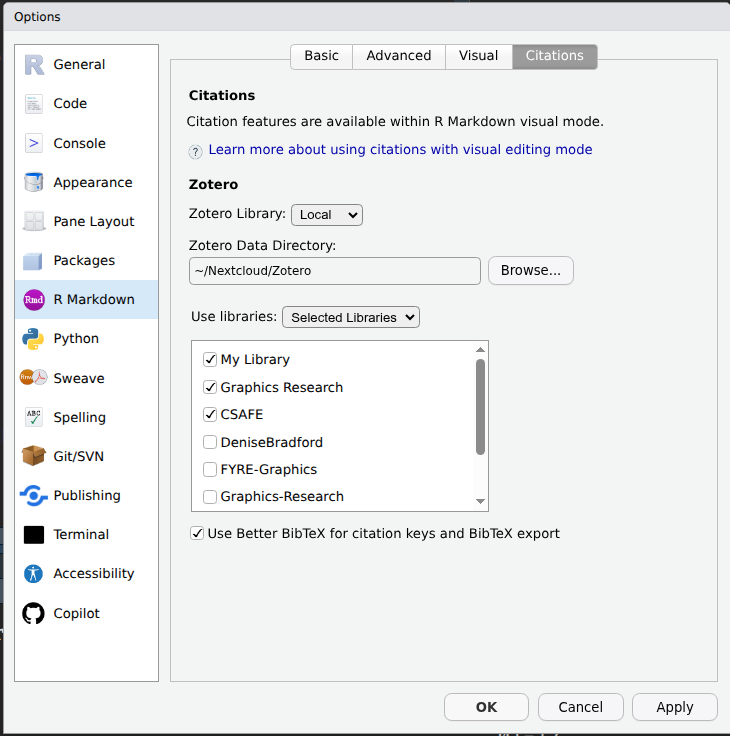
Open RStudio settings and click on the RMarkdown entry. Select Citations from the tabs across the top. Make sure that the Zotero data directory is correct and that you have your library checked (I have some shared libraries that you won’t have).
In your test quarto file, enable visual mode (the last line before the text file starts in the editor pane).
Start typing a sentence with a reference in it - you should only have to type the
\@before autocomplete tries to help you out. If you were citing a new paper that wasn’t already in references, the BibLaTeX entry would be copied into the references.bib file for you.
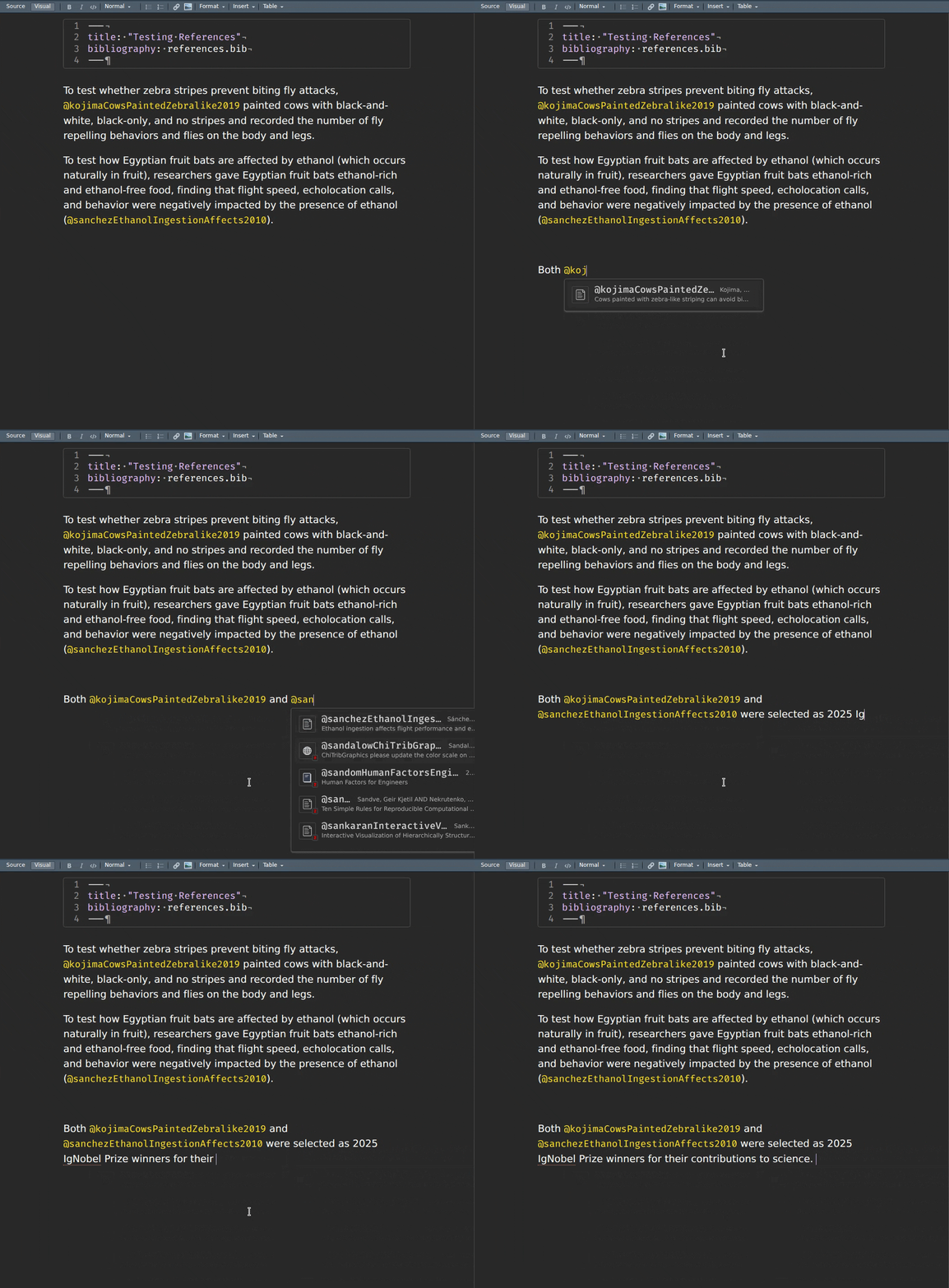
Compilation works the same – this just avoids the manual copy-paste step, if you are willing to use visual mode.
I don’t like using a mouse, so I avoid visual mode when writing. The RBBT R package can be used to add similar functionality to RStudio in source mode, if you prefer to use that, but of course this requires that you compile with knitr, so there is a bit of a loss of the platform-agnostic behavior that makes quarto great.
Necessary Bibliography Information and Common Manual Corrections
Zotero connector does a great, but not perfect, job at pulling in necessary information from most academic sources. It is a bit less polished when working with regular webpages, PDFs from other places, etc. This isn’t Zotero’s fault – it actually is more commonly an issue with the metadata fields in the thing you’re trying to save to Zotero. Most websites don’t provide a “last updated” date, and many don’t even provide an author. This is even true for some government reports, press releases, etc.
So, you have to do some scavenging, and fill in things that Zotero doesn’t. There are also some basic things you’ll need to check Zotero on, like the URL it saves, particularly if you are using the university library to access the resources.
Have you ever had a parent or grandparent send you a link to their amazon cart, as if you can see what’s in there from the URL?
It’s critical to make sure that URLs that are in Zotero are persistent and work for other people (as they’ll be part of your bibliography).
Open the URL in “private browsing” mode – does it work?
If the website is publicly available but is also a blog or something that can easily disappear off the internet, it may be better to archive it with the Internet Archive. I use their browser extension – it allows you to click a button or two and save the page at the current moment, assuming you don’t have to log in to view the page. It will often not work for e.g. newspaper articles, but some papers allow archiving and some don’t (the Lincoln Journal Star doesn’t, sadly).
Check the URL to make sure it doesn’t have a proxy address. UNL libraries provides a really nice bookmarklet that will redirect your browser to a login, and then use the library resources to get access to that login.
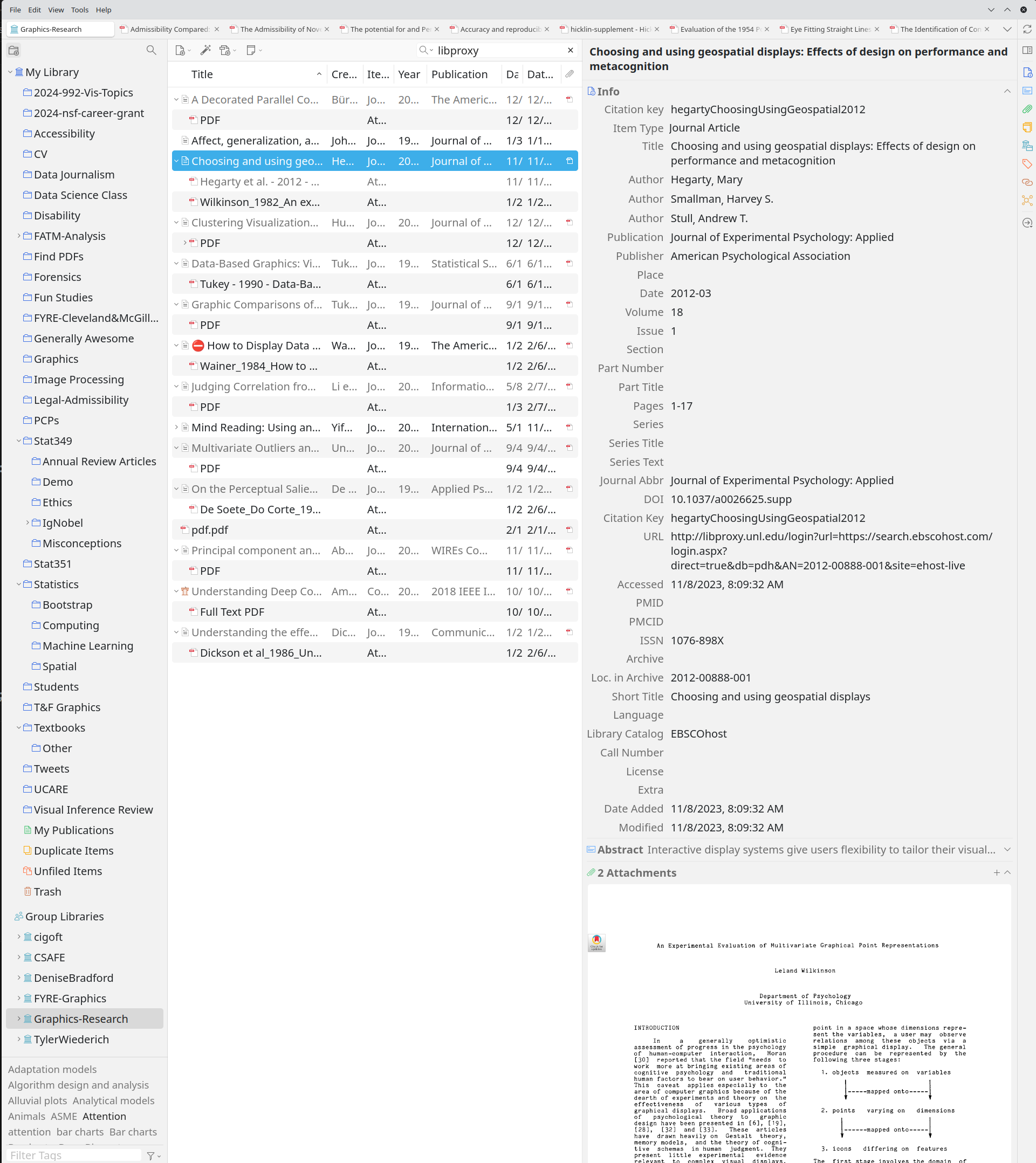
When using the library proxy server (which is amazing and does make accessing articles a lot faster/easier), you need to know how to transform the URL of the article back into something that will be usable by others.
https://research-ebsco-com.libproxy.unl.edu/c/cysalf/viewer/html/an5mgajxxz
needs to be transformed into:
https://research.ebsco.com/c/cysalf/viewer/html/an5mgajxxz
That is, we remove .libproxy.unl.edu, and then we add dots back in to the server address research-ebsco-com so that it becomes research.ebsco.com.
This process doesn’t always work, so it’s important to check the new link out in a different browser.
Alternately, if the article provides a DOI, use that instead – it’s a persistent identifier that will last far longer than the URL itself, which is subject to change through site redesigns.
Practice: National Academies Statement on CDC Vaccine Guidelines
Go to https://www.nationalacademies.org/news/statement-on-cdc-s-changes-to-guidance-on-vaccines-and-autism and use Zotero connector to import the citation information.
Make sure to fill in:
- the author(s)
- the website title
- the date the statement was published
- the publisher
Try to add the URL to the Internet archive, and update your citation to the URL provided by the Internet Archive to ensure that people can always see the statement. In an era where changes can be made silently by news organizations (rather than retractions printed in the paper itself), it’s important to document exactly the version you intended to cite.
Practice: Published Paper Stored on GitHub
Sometimes, it’s easier to get a journal article off of the author’s website. Typically, authors can host an un-formatted version of the paper sent to the journal (e.g. without the journal’s style layout) without violating copyright. Author websites often don’t have the extra metadata that journals add to papers – and this is the metadata Zotero uses to read in the bibliographic information.
Go to https://github.com/TengMCing/autovi_paper/blob/master/autovi_paper.pdf and load the paper into Zotero.
Download the PDF file and drag-and-drop it into the Zotero entry. If this doesn’t work, right click on the entry and choose “add attachment” and select the downloaded file. What metadata is present?
Drag and drop the PDF into the library without adding it to an entry. Right click and select “Retrieve Metadata”. What metadata does it find?
Using either (1) or (2) as a starting point, fill in the rest of the metadata. You may have to search for the paper – the DOI at the top of the PDF has X.XXX because the official DOI has not yet been assigned. There is an icon on the right toolbar at the bottom that looks like a right arrow in a circle – you can use this to search for the paper in e.g. Google Scholar.
Go to https://onlinelibrary.wiley.com/doi/10.1111/anzs.70027, which is where the journal copy of the paper lives. Import that into Zotero – what metadata does it provide? Does any of it contradict metadata you’ve already added?
In general, it is best to use the journal copy as the copy of record. Metadata can change, but the DOI generally will not. A paper can be published online before it is published in print (for journals that still do print), so some variation in the year is not unexpected. However, if you do not have access to the journal, using a PDF from the author with the journal’s metadata is usually a reasonable strategy.
Footnotes
For a journal article: authors, journal, article title, publication date (year and month, at least), and URL or DOI. If the journal has Volume, Issue, and pages, then those should be filled in as well, but some journals don’t have those anymore as journals have stopped printing physical issues. Journal articles that don’t have volumes, issues, and/or pages should have a DOI or URL at the very least. For a book, title, author(s), publisher, editor, publication date, and pages if you’re referencing only part of the book.↩︎